Category: Uncategorized

  • Cloudflare Tunnel, Cloudflare Tunnel for SASE – Stream logs from multiple replicas of Cloudflare Tunnel simultaneously

    In the Cloudflare One dashboard, the overview page for a specific Cloudflare Tunnel now shows all replicas of that tunnel and supports streaming logs from multiple replicas at once.

    View replicas and stream logs from multiple connectors

    Previously, you could only stream logs from one replica at a time. With this update:

    • Replicas on the tunnel overview — All active replicas for the selected tunnel now appear on that tunnel’s overview page under Connectors. Select any replica to stream its logs.
    • Multi-connector log streaming — Stream logs from multiple replicas simultaneously, making it easier to correlate events across your infrastructure during debugging or incident response. To try it out, log in to Cloudflare One and go to Networks > Connectors > Cloudflare Tunnels. Select View logs next to the tunnel you want to monitor.

    For more information, refer to Tunnel log streams and Deploy replicas.
  • DNS – DNS Analytics for Customer Metadata Boundary set to EU region

    DNS Analytics is now available for customers with Customer Metadata Boundary (CMB) set to EU. Query your DNS analytics data while keeping metadata stored in the EU region.

    This update includes:

    • DNS Analytics — Access the same DNS analytics experience for zones in CMB=EU accounts.
    • EU data residency — Analytics data is stored and queried from the EU region, meeting data localization requirements.
    • DNS Firewall Analytics — DNS Firewall analytics is now supported for CMB=EU customers.

    Availability

    Available to customers with the Data Localization Suite who have Customer Metadata Boundary configured for the EU region.

    Where to find it

    • Authoritative DNS: In the Cloudflare dashboard, select your zone and go to the Analytics page.

      Go to Analytics

    • DNS Firewall: In the Cloudflare dashboard, go to the DNS Firewall Analytics page.

      Go to Analytics

    For more information, refer to DNS Analytics and DNS Firewall Analytics.

  • Cloudflare Tunnel, Cloudflare Tunnel for SASE – Stream logs from multiple replicas of Cloudflare Tunnel simultaneously

    In the Cloudflare One dashboard, the overview page for a specific Cloudflare Tunnel now shows all replicas of that tunnel and supports streaming logs from multiple replicas at once.

    View replicas and stream logs from multiple connectors

    Previously, you could only stream logs from one replica at a time. With this update:

    • Replicas on the tunnel overview — All active replicas for the selected tunnel now appear on that tunnel’s overview page under Connectors. Select any replica to stream its logs.
    • Multi-connector log streaming — Stream logs from multiple replicas simultaneously, making it easier to correlate events across your infrastructure during debugging or incident response. To try it out, log in to Cloudflare One and go to Networks > Connectors > Cloudflare Tunnels. Select View logs next to the tunnel you want to monitor.

    For more information, refer to Tunnel log streams and Deploy replicas.
  • Cloudflare Fundamentals – SCIM audit logging Support

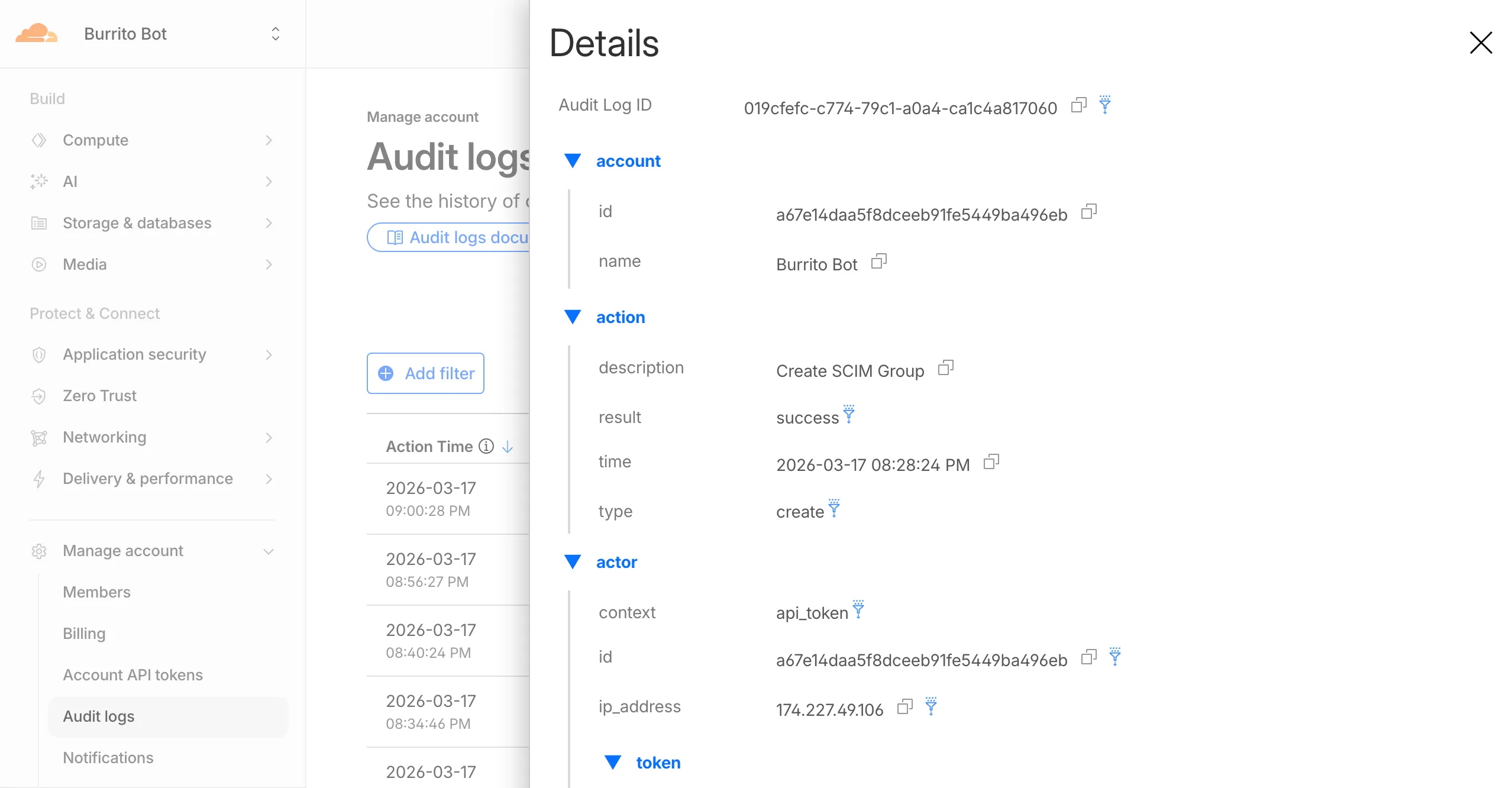
    Cloudflare dashboard SCIM provisioning operations are now captured in Audit Logs v2, giving you visibility into user and group changes made by your identity provider.

    SCIM audit logging

    Logged actions:

    Action Type Description
    Create SCIM User User provisioned from IdP
    Replace SCIM User User fully replaced (PUT)
    Update SCIM User User attributes modified (PATCH)
    Delete SCIM User Member deprovisioned
    Create SCIM Group Group provisioned from IdP
    Update SCIM Group Group membership or attributes modified
    Delete SCIM Group Group deprovisioned

    For more details, refer to the Audit Logs v2 documentation.

  • AI Gateway – Log AI Gateway request metadata without storing payloads

    AI Gateway now supports the cf-aig-collect-log-payload header, which controls whether request and response bodies are stored in logs. By default, this header is set to true and payloads are stored alongside metadata. Set this header to false to skip payload storage while still logging metadata such as token counts, model, provider, status code, cost, and duration.

    This is useful when you need usage metrics but do not want to persist sensitive prompt or response data.

    curl https://gateway.ai.cloudflare.com/v1/$ACCOUNT_ID/$GATEWAY_ID/openai/chat/completions
    --header "Authorization: Bearer $TOKEN"
    --header 'Content-Type: application/json'
    --header 'cf-aig-collect-log-payload: false'
    --data '{
    "model": "gpt-4o-mini",
    "messages": [
    {
    "role": "user",
    "content": "What is the email address and phone number of user123?"
    }
    ]
    }'

    For more information, refer to Logging.

  • Security Overview – New Security Overview UI

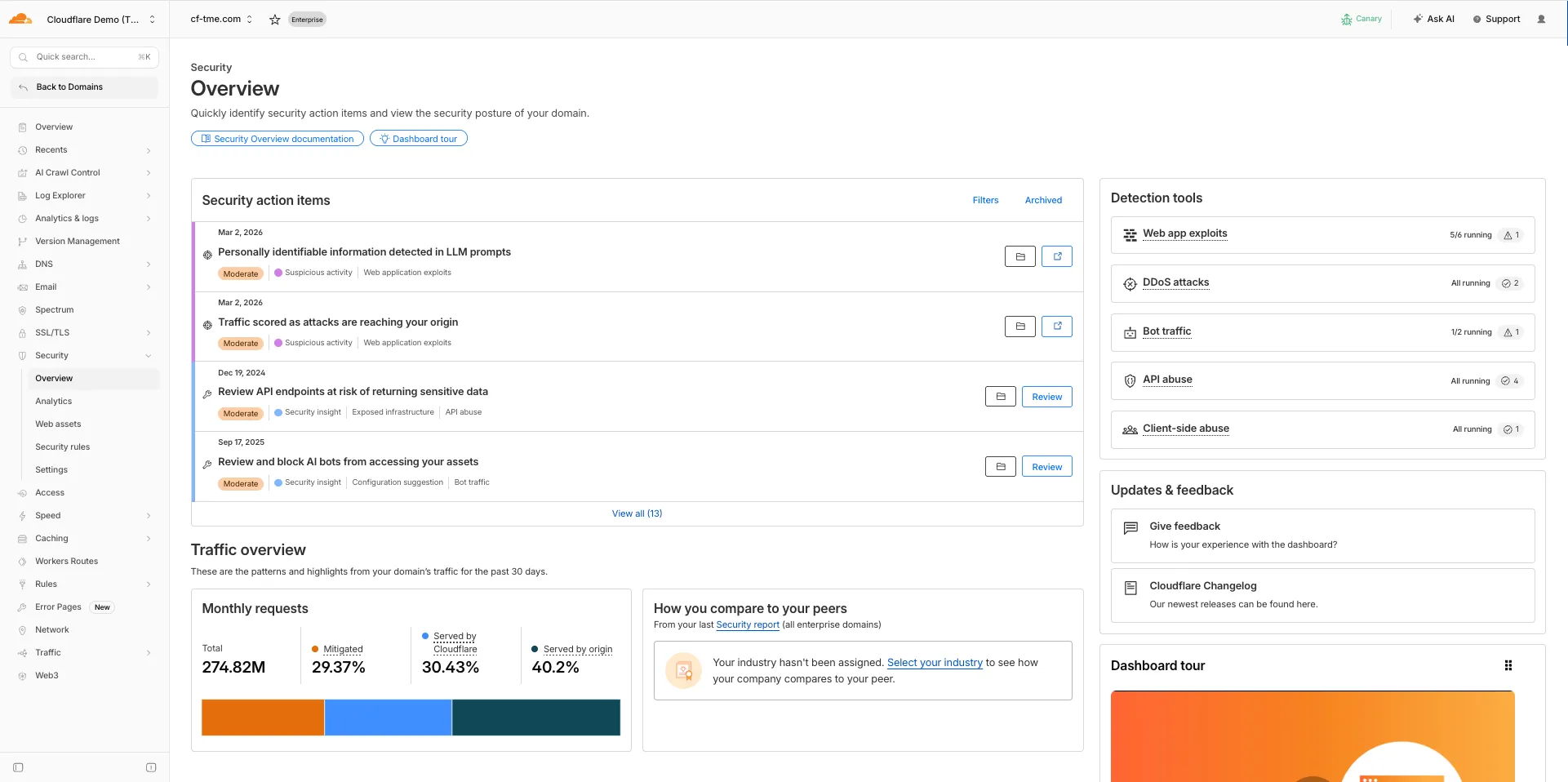
    The Security Overview has been updated to provide Application Security customers with more actionable insights and a clearer view of their security posture.

    Key improvements include:

    • Criticality for all Insights: Every insight now includes a criticality rating, allowing you to prioritize the most impactful security action items first.
    • Detection Tools Section: A new section displays the security detection tools available to you, indicating which are currently enabled and which can be activated to strengthen your defenses.
    • Industry Peer Comparison (Enterprise customers): A new module from Security Reports benchmarks your security posture against industry peers, highlighting relative strengths and areas for improvement.

    New Security Overview UI

    For more information, refer to Security Overview.

  • Vectorize – Return up to 50 query results with values or metadata

    You can now set topK up to 50 when a Vectorize query returns values or full metadata. This raises the previous limit of 20 for queries that use returnValues: true or returnMetadata: "all".

    Use the higher limit when you need more matches in a single query response without dropping values or metadata. Refer to the Vectorize API reference for query options and current topK limits.

  • WAF – WAF Release – 2026-03-12 – Emergency

    This week’s release introduces new detections for vulnerabilities in Ivanti Endpoint Manager Mobile (CVE-2026-1281 and CVE-2026-1340), alongside a new generic detection rule designed to identify and block Cross-Site Scripting (XSS) injection attempts within the Content-Security-Policy (CSP) HTTP request header.

    Key Findings

    • CVE-2026-1281 & CVE-2026-1340: Ivanti Endpoint Manager Mobile processes HTTP requests through Apache RevwriteMap directives that pass user-controlled input to Bash scripts (/mi/bin/map-appstore-url and /mi/bin/map-aft-store-url). Bash scripts do not sanitize user input and are vulnerable to shell arithmetic expansion thereby allowing attackers to achieve unauthenticated remote code execution.
    • Generic XSS in CSP Header: This rule identifies malicious payloads embedded within the request’s Content-Security-Policy header. It specifically targets scenarios where web frameworks or applications trust and extract values directly from the CSP header in the incoming request without sufficient validation. Attackers can provide crafted header values to inject scripts or malicious directives that are subsequently processed by the server.

    Impact

    Successful exploitation of Ivanti EPMM vulnerability allows unauthenticated remote code execution and generic XSS in CSP header allows attackers to inject malicious scripts during page rendering. In environments using server-side caching, this poisoned XSS content can subsequently be cached and automatically served to all visitors.

    Ruleset Rule ID Legacy Rule ID Description Previous Action New Action Comments
    Cloudflare Managed Ruleset 5ae86a9bda0c41dbb905132f796ea2f6 N/A Ivanti EPMM – Code Injection – CVE:CVE-2026-1281 CVE:CVE-2026-1340 Log Block This is a new detection.
    Cloudflare Managed Ruleset 35978af68e374a059e397bf5ee964a8c N/A Anomaly:Header:Content-Security-Policy N/A Block This is a new detection.
  • Containers – SSH into running Container instances

    You can now SSH into running Container instances using Wrangler. This is useful for debugging, inspecting running processes, or executing one-off commands inside a Container.

    To connect, enable wrangler_ssh in your Container configuration and add your ssh-ed25519 public key to authorized_keys:

    • wrangler.jsonc

      {
      "containers": [
      {
      "wrangler_ssh": {
      "enabled": true
      },
      "authorized_keys": [
      {
      "name": "<NAME>",
      "public_key": "<YOUR_PUBLIC_KEY_HERE>"
      }
      ]
      }
      ]
      }
    • wrangler.toml

      [[containers]]
      [containers.wrangler_ssh]
      enabled = true
      [[containers.authorized_keys]]
      name = "<NAME>"
      public_key = "<YOUR_PUBLIC_KEY_HERE>"

    Then connect with:

    wrangler containers ssh <INSTANCE_ID>

    You can also run a single command without opening an interactive shell:

    wrangler containers ssh <INSTANCE_ID> -- ls -al

    Use wrangler containers instances <APPLICATION> to find the instance ID for a running Container.

    For more information, refer to the SSH documentation.

  • Containers – List Container instances with `wrangler containers instances`

    A new wrangler containers instances command lists all instances for a given Container application. This mirrors the instances view in the Cloudflare dashboard.

    The command displays each instance’s ID, name, state, location, version, and creation time:

    wrangler containers instances <APPLICATION_ID>

    Use the --json flag for machine-readable output, which is also the default format in non-interactive environments such as CI pipelines.

    For the full list of options, refer to the containers instances command reference.