Category: Uncategorized

  • Workers – Static prerendering support for TanStack Start

    TanStack Start apps can now prerender routes to static HTML at build time with access to build time environment variables
    and bindings, and serve them as static assets. To enable prerendering, configure the prerender option of the TanStack Start plugin in your Vite config:

    import { defineConfig } from "vite";
    import { cloudflare } from "@cloudflare/vite-plugin";
    import { tanstackStart } from "@tanstack/react-start/plugin/vite";
    export default defineConfig({
    plugins: [
    cloudflare({ viteEnvironment: { name: "ssr" } }),
    tanstackStart({
    prerender: {
    enabled: true,
    },
    }),
    ],
    });

    This feature requires @tanstack/react-start v1.138.0 or later. See the TanStack Start framework guide for more details.
  • AI Crawl Control – New AI Crawl Control Overview tab

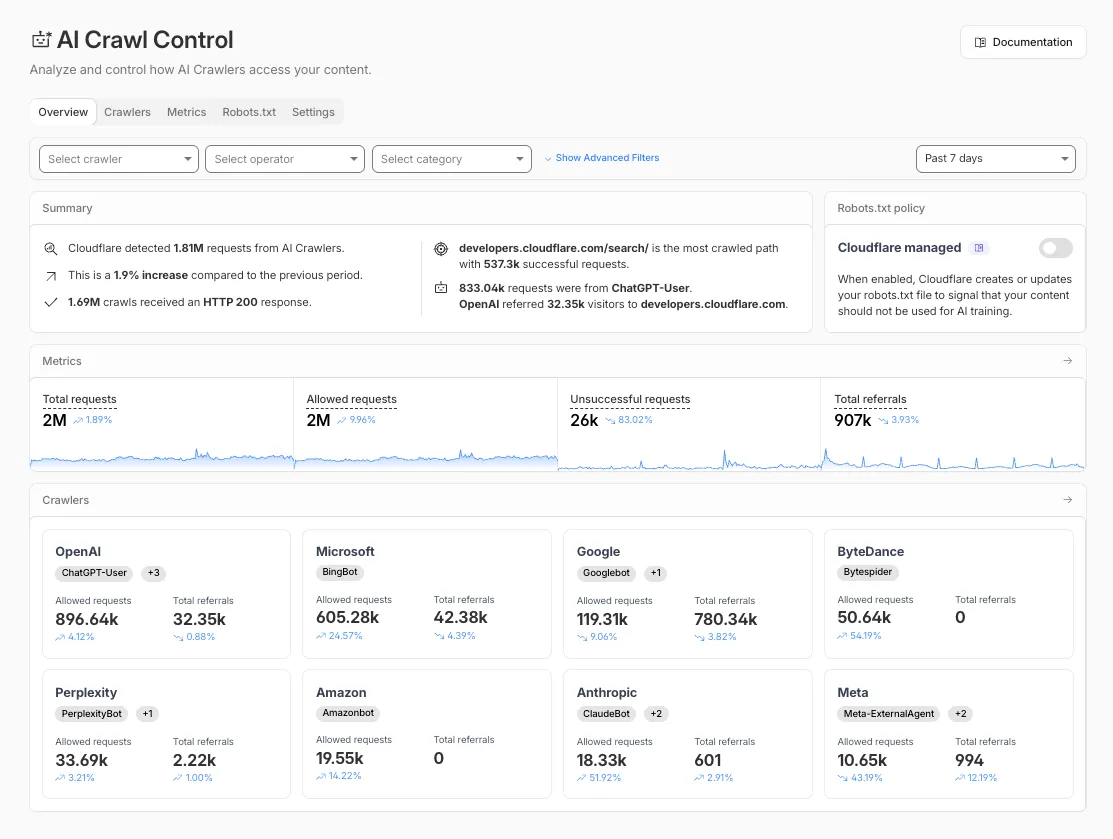
    The Overview tab is now the default view in AI Crawl Control. The previous default view with controls for individual AI crawlers is available in the Crawlers tab.

    What’s new

    • Executive summary — Monitor total requests, volume change, most common status code, most popular path, and high-volume activity
    • Operator grouping — Track crawlers by their operating companies (OpenAI, Microsoft, Google, ByteDance, Anthropic, Meta)
    • Customizable filters — Filter your snapshot by date range, crawler, operator, hostname, or path

    AI Crawl Control Overview tab showing executive summary, metrics, and crawler groups

    Get started

    1. Log in to the Cloudflare dashboard and select your account and domain.
    2. Go to AI Crawl Control, where the Overview tab opens by default with your activity snapshot.
    3. Use filters to customize your view by date range, crawler, operator, hostname, or path.
    4. Navigate to the Crawlers tab to manage controls for individual crawlers.

    Learn more about analyzing AI traffic and managing AI crawlers.

  • AI Crawl Control – New AI Crawl Control Overview tab

    The Overview tab is now the default view in AI Crawl Control. The previous default view with controls for individual AI crawlers is available in the Crawlers tab.

    What’s new

    • Executive summary — Monitor total requests, volume change, most common status code, most popular path, and high-volume activity
    • Operator grouping — Track crawlers by their operating companies (OpenAI, Microsoft, Google, ByteDance, Anthropic, Meta)
    • Customizable filters — Filter your snapshot by date range, crawler, operator, hostname, or path

    AI Crawl Control Overview tab showing executive summary, metrics, and crawler groups

    Get started

    1. Log in to the Cloudflare dashboard and select your account and domain.
    2. Go to AI Crawl Control, where the Overview tab opens by default with your activity snapshot.
    3. Use filters to customize your view by date range, crawler, operator, hostname, or path.
    4. Navigate to the Crawlers tab to manage controls for individual crawlers.

    Learn more about analyzing AI traffic and managing AI crawlers.

  • AI Crawl Control – New AI Crawl Control Overview tab

    The Overview tab is now the default view in AI Crawl Control. The previous default view with controls for individual AI crawlers is available in the Crawlers tab.

    What’s new

    • Executive summary — Monitor total requests, volume change, most common status code, most popular path, and high-volume activity
    • Operator grouping — Track crawlers by their operating companies (OpenAI, Microsoft, Google, ByteDance, Anthropic, Meta)
    • Customizable filters — Filter your snapshot by date range, crawler, operator, hostname, or path

    AI Crawl Control Overview tab showing executive summary, metrics, and crawler groups

    Get started

    1. Log in to the Cloudflare dashboard and select your account and domain.
    2. Go to AI Crawl Control, where the Overview tab opens by default with your activity snapshot.
    3. Use filters to customize your view by date range, crawler, operator, hostname, or path.
    4. Navigate to the Crawlers tab to manage controls for individual crawlers.

    Learn more about analyzing AI traffic and managing AI crawlers.

  • AI Crawl Control – New AI Crawl Control Overview tab

    The Overview tab is now the default view in AI Crawl Control. The previous default view with controls for individual AI crawlers is available in the Crawlers tab.

    What’s new

    • Executive summary — Monitor total requests, volume change, most common status code, most popular path, and high-volume activity
    • Operator grouping — Track crawlers by their operating companies (OpenAI, Microsoft, Google, ByteDance, Anthropic, Meta)
    • Customizable filters — Filter your snapshot by date range, crawler, operator, hostname, or path

    AI Crawl Control Overview tab showing executive summary, metrics, and crawler groups

    Get started

    1. Log in to the Cloudflare dashboard and select your account and domain.
    2. Go to AI Crawl Control, where the Overview tab opens by default with your activity snapshot.
    3. Use filters to customize your view by date range, crawler, operator, hostname, or path.
    4. Navigate to the Crawlers tab to manage controls for individual crawlers.

    Learn more about analyzing AI traffic and managing AI crawlers.

  • AI Crawl Control – New AI Crawl Control Overview tab

    The Overview tab is now the default view in AI Crawl Control. The previous default view with controls for individual AI crawlers is available in the Crawlers tab.

    What’s new

    • Executive summary — Monitor total requests, volume change, most common status code, most popular path, and high-volume activity
    • Operator grouping — Track crawlers by their operating companies (OpenAI, Microsoft, Google, ByteDance, Anthropic, Meta)
    • Customizable filters — Filter your snapshot by date range, crawler, operator, hostname, or path

    AI Crawl Control Overview tab showing executive summary, metrics, and crawler groups

    Get started

    1. Log in to the Cloudflare dashboard and select your account and domain.
    2. Go to AI Crawl Control, where the Overview tab opens by default with your activity snapshot.
    3. Use filters to customize your view by date range, crawler, operator, hostname, or path.
    4. Navigate to the Crawlers tab to manage controls for individual crawlers.

    Learn more about analyzing AI traffic and managing AI crawlers.

  • AI Crawl Control – New AI Crawl Control Overview tab

    The Overview tab is now the default view in AI Crawl Control. The previous default view with controls for individual AI crawlers is available in the Crawlers tab.

    What’s new

    • Executive summary — Monitor total requests, volume change, most common status code, most popular path, and high-volume activity
    • Operator grouping — Track crawlers by their operating companies (OpenAI, Microsoft, Google, ByteDance, Anthropic, Meta)
    • Customizable filters — Filter your snapshot by date range, crawler, operator, hostname, or path

    AI Crawl Control Overview tab showing executive summary, metrics, and crawler groups

    Get started

    1. Log in to the Cloudflare dashboard and select your account and domain.
    2. Go to AI Crawl Control, where the Overview tab opens by default with your activity snapshot.
    3. Use filters to customize your view by date range, crawler, operator, hostname, or path.
    4. Navigate to the Crawlers tab to manage controls for individual crawlers.

    Learn more about analyzing AI traffic and managing AI crawlers.

  • AI Crawl Control – New AI Crawl Control Overview tab

    The Overview tab is now the default view in AI Crawl Control. The previous default view with controls for individual AI crawlers is available in the Crawlers tab.

    What’s new

    • Executive summary — Monitor total requests, volume change, most common status code, most popular path, and high-volume activity
    • Operator grouping — Track crawlers by their operating companies (OpenAI, Microsoft, Google, ByteDance, Anthropic, Meta)
    • Customizable filters — Filter your snapshot by date range, crawler, operator, hostname, or path

    AI Crawl Control Overview tab showing executive summary, metrics, and crawler groups

    Get started

    1. Log in to the Cloudflare dashboard and select your account and domain.
    2. Go to AI Crawl Control, where the Overview tab opens by default with your activity snapshot.
    3. Use filters to customize your view by date range, crawler, operator, hostname, or path.
    4. Navigate to the Crawlers tab to manage controls for individual crawlers.

    Learn more about analyzing AI traffic and managing AI crawlers.

  • AI Crawl Control – New AI Crawl Control Overview tab

    The Overview tab is now the default view in AI Crawl Control. The previous default view with controls for individual AI crawlers is available in the Crawlers tab.

    What’s new

    • Executive summary — Monitor total requests, volume change, most common status code, most popular path, and high-volume activity
    • Operator grouping — Track crawlers by their operating companies (OpenAI, Microsoft, Google, ByteDance, Anthropic, Meta)
    • Customizable filters — Filter your snapshot by date range, crawler, operator, hostname, or path

    AI Crawl Control Overview tab showing executive summary, metrics, and crawler groups

    Get started

    1. Log in to the Cloudflare dashboard and select your account and domain.
    2. Go to AI Crawl Control, where the Overview tab opens by default with your activity snapshot.
    3. Use filters to customize your view by date range, crawler, operator, hostname, or path.
    4. Navigate to the Crawlers tab to manage controls for individual crawlers.

    Learn more about analyzing AI traffic and managing AI crawlers.

  • AI Crawl Control – New AI Crawl Control Overview tab

    The Overview tab is now the default view in AI Crawl Control. The previous default view with controls for individual AI crawlers is available in the Crawlers tab.

    What’s new

    • Executive summary — Monitor total requests, volume change, most common status code, most popular path, and high-volume activity
    • Operator grouping — Track crawlers by their operating companies (OpenAI, Microsoft, Google, ByteDance, Anthropic, Meta)
    • Customizable filters — Filter your snapshot by date range, crawler, operator, hostname, or path

    AI Crawl Control Overview tab showing executive summary, metrics, and crawler groups

    Get started

    1. Log in to the Cloudflare dashboard and select your account and domain.
    2. Go to AI Crawl Control, where the Overview tab opens by default with your activity snapshot.
    3. Use filters to customize your view by date range, crawler, operator, hostname, or path.
    4. Navigate to the Crawlers tab to manage controls for individual crawlers.

    Learn more about analyzing AI traffic and managing AI crawlers.