Author: guillaume

  • Realtime – Cloudflare’s Realtime WebSocket adapter now auto-reconnects and buffers WebRTC media

    Cloudflare Realtime SFU is a WebRTC Selective Forwarding Unit that runs on Cloudflare’s global network, so you can route live audio, video, and data between WebRTC clients around the world without managing SFU infrastructure or regions.

    When you use the WebSocket adapter to stream WebRTC media to a WebSocket endpoint, the adapter now auto-reconnects and buffers audio and video after brief endpoint disconnects or restarts.

    Streaming WebRTC media to WebSocket endpoints

    Many teams also use Realtime SFU as the media layer for backend applications, such as transcription, recording, note-taking, and agentic media-processing services. These systems often need to consume live WebRTC audio or video from the SFU in backend infrastructure, including Durable Objects, Workers, Containers, or external services, without running a WebRTC client themselves.

    The WebSocket adapter bridges that gap by streaming WebRTC media from the SFU to a standard WebSocket endpoint as application-consumable payloads: PCM audio frames and JPEG video frames.

    What changed

    When you use the WebSocket adapter in Stream mode (egress) to send live audio or video from the SFU to your own WebSocket endpoint, the SFU now automatically reconnects after brief endpoint disconnects or restarts. This is especially helpful for long-running media pipelines where the WebSocket endpoint may briefly restart while a recording, transcription, or live analysis job is still in progress.

    Previously, a brief disconnect from your WebSocket endpoint could close the adapter and require your application to recreate it before media could resume. Now, the SFU retries the same endpoint for up to 5 seconds with no API change required. If the endpoint comes back within that window, audio and video delivery resumes automatically.

    The reconnect behavior also includes live-first media buffering, so brief interruptions reduce media loss without replaying stale video.

    Reconnect behavior

    During reconnect:

    • Audio uses a short bounded backlog to reduce audible loss. If the interruption lasts longer than the backlog can cover, older audio may be dropped.
    • Video resumes from the latest available JPEG frame instead of replaying stale frames.
    • Recovery is best effort and does not guarantee gapless or exactly-once delivery.

    If the endpoint remains unavailable after the 5-second reconnect window, the adapter closes and must be recreated.
    Learn more

  • Logs – Updated fields across multiple Logpush datasets in Cloudflare Logs

    Cloudflare has updated Logpush datasets:

    Updated fields in existing datasets

    • DEX Device State Events (added): DeviceRegistrationProfileID.
    • Gateway HTTP (added): AddedHeaders, DeletedHeaders, and SetHeaders.
    • HTTP requests (added): MatchedRules.

    For the complete field definitions for each dataset, refer to Logpush datasets.

  • Agents – Share sandbox previews through Cloudflare Tunnel

    Sandboxes can expose a service running inside the container on a public preview URL through the sandbox.tunnels namespace. The SDK uses cloudflared inside the sandbox so you can share a running service without configuring exposePort() or a custom domain.

    By default, sandbox.tunnels.get(port) creates a quick tunnel on a zero-config *.trycloudflare.com URL — no Cloudflare account, DNS record, or custom domain required. This is perfect for quick development and for .workers.dev deployments.

    • JavaScript

      import { getSandbox } from "@cloudflare/sandbox";
      const sandbox = getSandbox(env.Sandbox, "my-sandbox");
      await sandbox.startProcess("python -m http.server 8080");
      const tunnel = await sandbox.tunnels.get(8080);
      console.log(tunnel.url); // → https://random-words-here.trycloudflare.com
    • TypeScript

      import { getSandbox } from "@cloudflare/sandbox";
      const sandbox = getSandbox(env.Sandbox, "my-sandbox");
      await sandbox.startProcess("python -m http.server 8080");
      const tunnel = await sandbox.tunnels.get(8080);
      console.log(tunnel.url); // → https://random-words-here.trycloudflare.com

    Named tunnels

    For more control you can create a named tunnel through sandbox.tunnels.get(port, { name }). A named tunnel binds a hostname (<name>.<your-zone>) backed by a Cloudflare Tunnel and a CNAME record on your zone resulting in something like https://my-app-preview.example.com.

    Unlike quick tunnels, which generate a new random URL each time, a named tunnel produces a persistent URL that survives container restarts. This makes named tunnels suitable for production use cases where you want control over the tunnel and it’s origin.

    • JavaScript

      const tunnel = await sandbox.tunnels.get(8080, { name: "my-app-preview" });
      console.log(tunnel.url); // → https://my-app-preview.example.com
    • TypeScript

      const tunnel = await sandbox.tunnels.get(8080, { name: "my-app-preview" });
      console.log(tunnel.url); // → https://my-app-preview.example.com

    Calling sandbox.destroy() tears down the Cloudflare Tunnel and the associated DNS record alongside the container, so you do not leave dangling tunnels or records behind.

    Upgrade

    To update to the latest version:

    npm i @cloudflare/sandbox@latest
    yarn add @cloudflare/sandbox@latest
    pnpm add @cloudflare/sandbox@latest
    bun add @cloudflare/sandbox@latest

    For full API details, refer to the Sandbox tunnels reference.

  • Logs – Updated fields across multiple Logpush datasets in Cloudflare Logs

    Cloudflare has updated Logpush datasets:

    Updated fields in existing datasets

    • DEX Device State Events (added): DeviceRegistrationProfileID.
    • Gateway HTTP (added): AddedHeaders, DeletedHeaders, and SetHeaders.
    • HTTP requests (added): MatchedRules.

    For the complete field definitions for each dataset, refer to Logpush datasets.

  • Radar – TLS bug detection in the Cloudflare Radar post-quantum checker

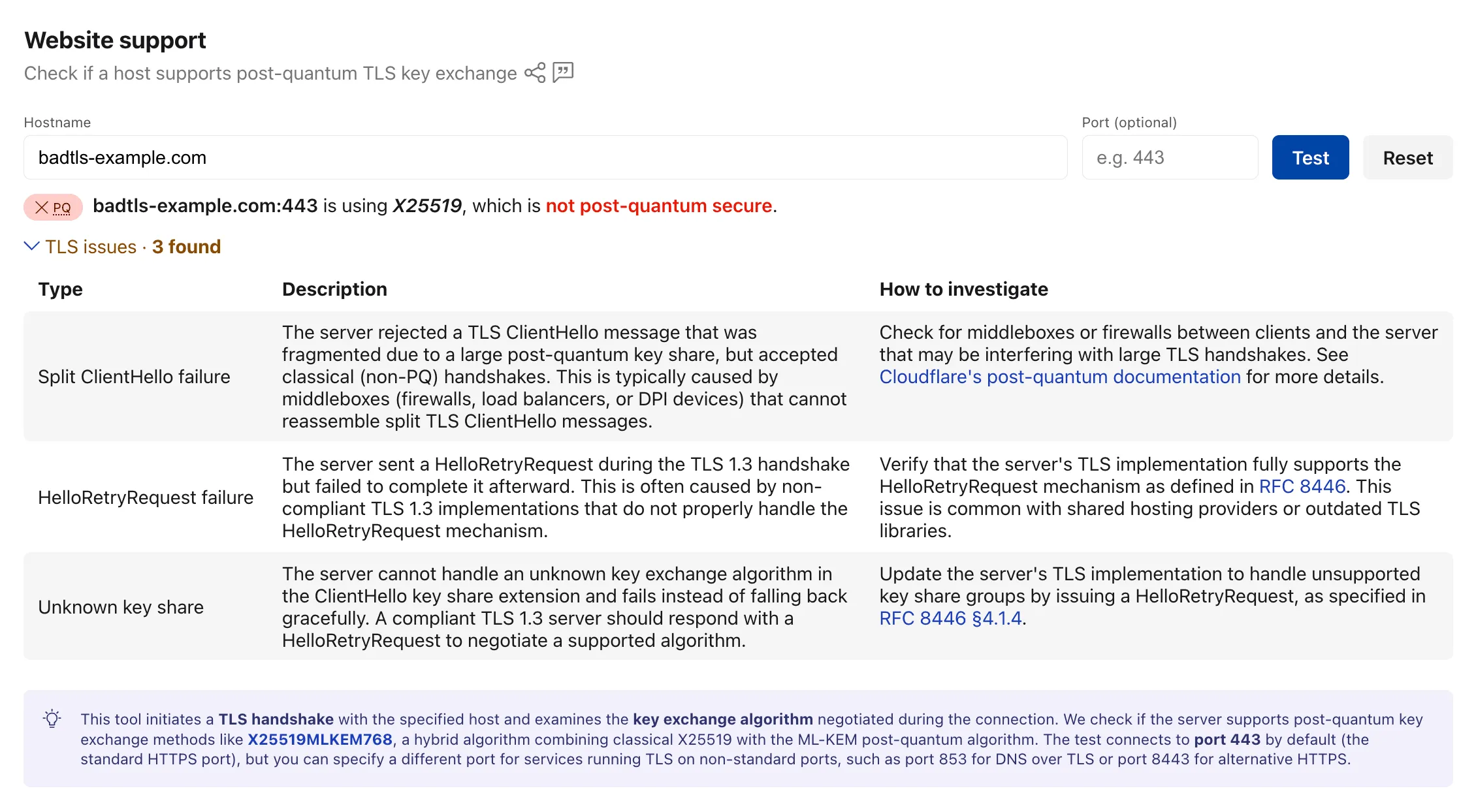
    The Radar post-quantum TLS support checker now also reports TLS bugs detected during the handshake test. When a scanned host exhibits compatibility issues, the results include details on the specific bugs detected, along with guidance on how to investigate and remediate each issue. The bugs section only appears for hosts where issues are found.

    The following TLS bugs are detected:

    • Split ClientHello — The connection fails with a fragmented post-quantum ClientHello but succeeds with classical handshakes. Typically caused by middleboxes or firewalls that cannot reassemble split TLS messages.
    • HRR Failure — The server sends a HelloRetryRequest but fails to complete the handshake afterward.
    • Unknown Keyshare — The server cannot handle unknown key exchange algorithms and fails instead of responding with a HelloRetryRequest as required by the TLS 1.3 specification.

    TLS bug detection results in the Radar post-quantum checker

    Bug detection data is available through the existing /post_quantum/tls/support endpoint.

    Visit the Post-Quantum Encryption page to test a host.

  • Browser Run – Use Browser Run Quick Actions directly from Workers

    You can now call Browser Run Quick Actions directly from a Cloudflare Worker using the quickAction() method on the browser binding. This simplifies how Workers interact with Browser Run by removing the need for API tokens or external HTTP requests. Your Worker communicates with Browser Run directly over Cloudflare’s network, resulting in simpler code and lower latency.

    With the quickAction() method you can:

    To get started, add a browser binding to your Wrangler configuration:

    • wrangler.jsonc

      {
      "compatibility_date": "2026-03-24",
      "browser": {
      "binding": "BROWSER"
      }
      }
    • wrangler.toml

      compatibility_date = "2026-03-24"
      [browser]
      binding = "BROWSER"

    Then call any Quick Action directly from your Worker. For example, to capture a screenshot:

    • JavaScript

      const screenshot = await env.BROWSER.quickAction("screenshot", {
      url: "https://www.cloudflare.com/",
      });
    • TypeScript

      const screenshot = await env.BROWSER.quickAction("screenshot", {
      url: "https://www.cloudflare.com/",
      });

    The quickAction() method requires a compatibility date of 2026-03-24 or later.

    For setup instructions and the full list of available actions, refer to Browser Run Quick Actions.

  • Cloudflare Mesh, Cloudflare One – High availability replica management for Cloudflare Mesh


    The Cloudflare Mesh dashboard now shows per-replica details for high availability nodes. You can see which replica is active, view each replica’s Mesh IP and connection details, and manually trigger failover — all from the node detail page.

    Mesh HA replica tabs showing active and passive replicas with per-replica Mesh IPs and a manual failover option

    What’s new

    • Replica tabs on the node detail page — switch between replicas to see each one’s Mesh IP, edge data center, origin IP, platform, version, and uptime.
    • Active/passive badges identify which replica is currently routing traffic.
    • Manual failover — promote a passive replica to active with a single click. The previous active replica switches to standby.
    • HA badge in the overview table identifies nodes running multiple replicas.
    • Active replica IP shown in the overview table — the dashboard now resolves which replica is active and displays the correct Mesh IP.

    Manual failover

    To manually promote a passive replica:

    1. In the Cloudflare dashboard, go to Networking > Mesh.
    2. Select an HA-enabled node.
    3. Select the passive replica tab.
    4. Select Promote to active and confirm.

    Traffic reroutes to the promoted replica immediately. Refer to High availability for details on failover behavior.

  • Cloudflare Mesh, Cloudflare One – High availability replica management for Cloudflare Mesh

    The Cloudflare Mesh dashboard now shows per-replica details for high availability nodes. You can see which replica is active, view each replica’s Mesh IP and connection details, and manually trigger failover — all from the node detail page.

    Mesh HA replica tabs showing active and passive replicas with per-replica Mesh IPs and a manual failover option

    What’s new

    • Replica tabs on the node detail page — switch between replicas to see each one’s Mesh IP, edge data center, origin IP, platform, version, and uptime.
    • Active/passive badges identify which replica is currently routing traffic.
    • Manual failover — promote a passive replica to active with a single click. The previous active replica switches to standby.
    • HA badge in the overview table identifies nodes running multiple replicas.
    • Active replica IP shown in the overview table — the dashboard now resolves which replica is active and displays the correct Mesh IP.

    Manual failover

    To manually promote a passive replica:

    1. In the Cloudflare dashboard, go to Networking > Mesh.
    2. Select an HA-enabled node.
    3. Select the passive replica tab.
    4. Select Promote to active and confirm.

    Traffic reroutes to the promoted replica immediately. Refer to High availability for details on failover behavior.

  • Browser Run – Use Browser Run Quick Actions directly from Workers

    You can now call Browser Run Quick Actions directly from a Cloudflare Worker using the quickAction() method on the browser binding. This simplifies how Workers interact with Browser Run by removing the need for API tokens or external HTTP requests. Your Worker communicates with Browser Run directly over Cloudflare’s network, resulting in simpler code and lower latency.

    With the quickAction() method you can:

    To get started, add a browser binding to your Wrangler configuration:

    • wrangler.jsonc

      {
      "compatibility_date": "2026-03-24",
      "browser": {
      "binding": "BROWSER"
      }
      }
    • wrangler.toml

      compatibility_date = "2026-03-24"
      [browser]
      binding = "BROWSER"

    Then call any Quick Action directly from your Worker. For example, to capture a screenshot:

    • JavaScript

      const screenshot = await env.BROWSER.quickAction("screenshot", {
      url: "https://www.cloudflare.com/",
      });
    • TypeScript

      const screenshot = await env.BROWSER.quickAction("screenshot", {
      url: "https://www.cloudflare.com/",
      });

    The quickAction() method requires a compatibility date of 2026-03-24 or later.

    For setup instructions and the full list of available actions, refer to Browser Run Quick Actions.

  • Cloudflare Images – Transformation flows in Images

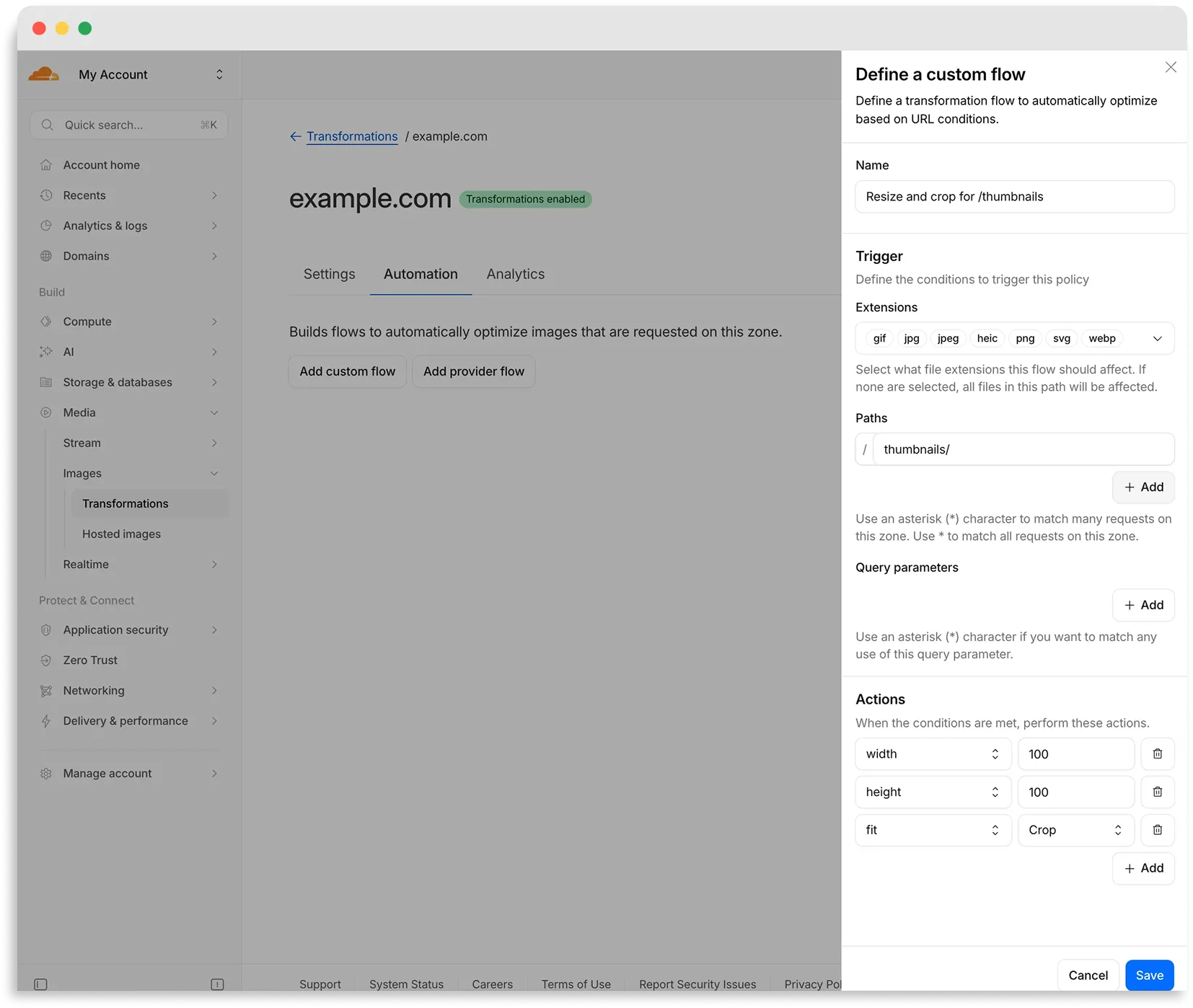
    Custom flow configuration panel

    Flows are automated rules that pair conditions (such as file extension, URL path, or query parameter) with parameters. Set up a flow to automatically apply image optimization to matching requests on your zone without writing code or changing URLs.

    There are two modes for transformation flows:

    • Provider flows — Migrate from another image optimization service. Your existing URLs continue to work while Cloudflare rewrites provider-specific parameters to their Cloudflare equivalents. Currently, Cloudflare supports provider flows for Fastly Image Optimizer.
    • Custom flows — Define your own conditions and actions for use cases like automatic format conversion, responsive sizing with width=auto, or directory-based optimization.

    To get started, go to Images > Transformations > Automation in the Cloudflare dashboard.

    Learn more about transformation flows.