Category: Uncategorized

  • Analytics, Log Explorer – Custom dashboards available to all customers

    Custom Dashboards are now available to all Cloudflare customers. Build personalized views that highlight the metrics most critical to your infrastructure and security posture, moving beyond standard product dashboards.

    This update significantly expands the data available for visualization. Build charts based on any of the 100+ datasets available via the Cloudflare GraphQL API, covering everything from WAF events and Workers metrics to Load Balancing and Zero Trust logs.

    Log Explorer integration

    For Log Explorer customers, you can now turn raw log queries directly into dashboard charts. When you identify a specific pattern or spike while investigating logs, save that query as a visualization to monitor those signals in real-time without leaving the dashboard.

    Key benefits

    • Unified visibility: Consolidate signals from different Cloudflare products (for example, HTTP Traffic and R2 Storage) into a single view.
    • Flexible monitoring: Create charts that focus on specific status codes, ASN regions, or security actions that matter to your business.
    • Expanded limits: Log Explorer customers can create up to 100 dashboards (up from 25 for standard customers).
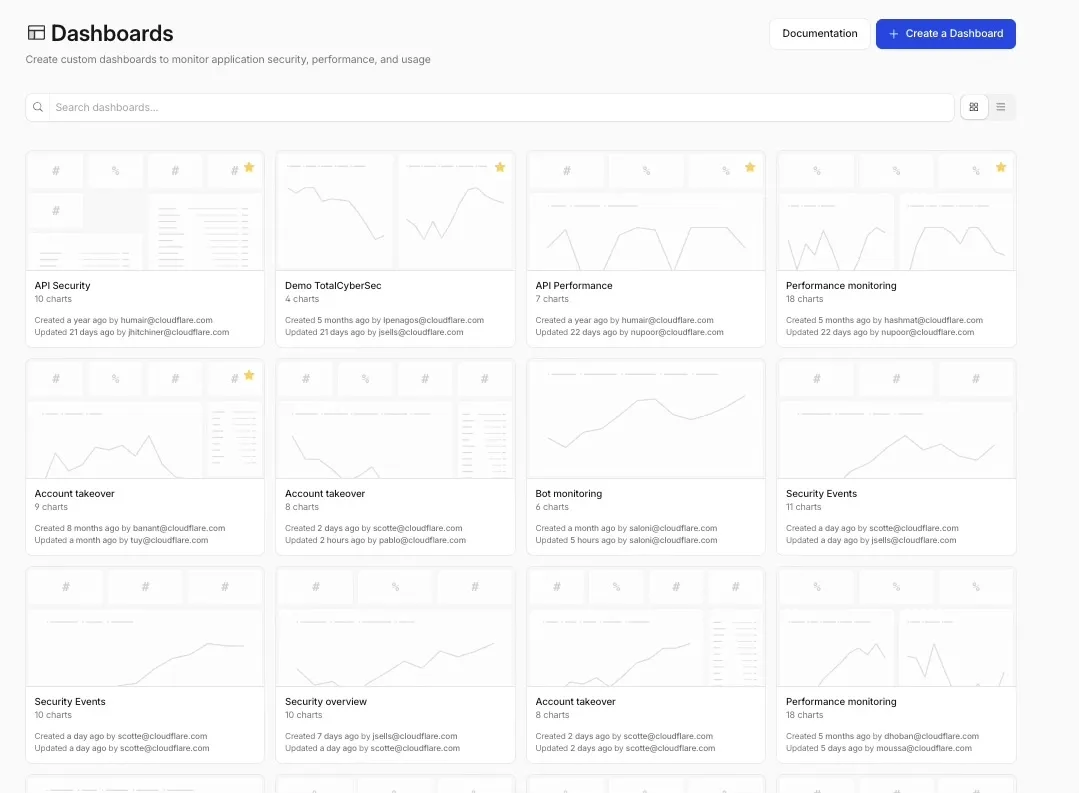
    Custom Dashboards home page showing dashboard list and chart previews

    To get started, refer to the Custom Dashboards documentation.
  • Analytics, Log Explorer – Custom dashboards available to all customers

    Custom Dashboards are now available to all Cloudflare customers. Build personalized views that highlight the metrics most critical to your infrastructure and security posture, moving beyond standard product dashboards.

    This update significantly expands the data available for visualization. Build charts based on any of the 100+ datasets available via the Cloudflare GraphQL API, covering everything from WAF events and Workers metrics to Load Balancing and Zero Trust logs.

    Log Explorer integration

    For Log Explorer customers, you can now turn raw log queries directly into dashboard charts. When you identify a specific pattern or spike while investigating logs, save that query as a visualization to monitor those signals in real-time without leaving the dashboard.

    Key benefits

    • Unified visibility: Consolidate signals from different Cloudflare products (for example, HTTP Traffic and R2 Storage) into a single view.
    • Flexible monitoring: Create charts that focus on specific status codes, ASN regions, or security actions that matter to your business.
    • Expanded limits: Log Explorer customers can create up to 100 dashboards (up from 25 for standard customers).

    Custom Dashboards home page showing dashboard list and chart previews

    To get started, refer to the Custom Dashboards documentation.
  • R2 – R2 Data Catalog snapshot expiration now removes unreferenced data files

    R2 Data Catalog, a managed Apache Iceberg catalog built into R2, now removes unreferenced data files during automatic snapshot expiration. This improvement reduces storage costs and eliminates the need to run manual maintenance jobs to reclaim space from deleted data.

    Previously, snapshot expiration only cleaned up Iceberg metadata files such as manifests and manifest lists. Data files that were no longer referenced by active snapshots remained in R2 storage until you manually ran remove_orphan_files or expire_snapshots through an engine like Spark. This required extra operational overhead and left stale data files consuming storage.

    Snapshot expiration now handles both metadata and data file cleanup automatically. When a snapshot is expired, any data files that are no longer referenced by retained snapshots are removed from R2 storage.

    # Enable catalog-level snapshot expiration
    npx wrangler r2 bucket catalog snapshot-expiration enable my-bucket
    --older-than-days 7
    --retain-last 10

    To learn more about snapshot expiration and other automatic maintenance operations, refer to the table maintenance documentation.

  • Workflows – Additional step context and ReadableStream support now available in Workflows step.do()

    Workflows now provides additional context inside step.do() callbacks and supports returning ReadableStream to handle larger step outputs.

    Step context properties

    The step.do() callback receives a context object with new properties alongside attempt:

    • step.name — The name passed to step.do()
    • step.count — How many times a step with that name has been invoked in this instance (1-indexed)
      • Useful when running the same step in a loop.
    • config — The resolved step configuration, including timeout and retries with defaults applied
    type ResolvedStepConfig = {
    retries: {
    limit: number;
    delay: WorkflowDelayDuration | number;
    backoff?: "constant" | "linear" | "exponential";
    };
    timeout: WorkflowTimeoutDuration | number;
    };
    type WorkflowStepContext = {
    step: {
    name: string;
    count: number;
    };
    attempt: number;
    config: ResolvedStepConfig;
    };

    ReadableStream support in step.do()

    Steps can now return a ReadableStream directly. Although non-stream step outputs are limited to 1 MiB, streamed outputs support much larger payloads.

    const largePayload = await step.do("fetch-large-file", async () => {
    const object = await env.MY_BUCKET.get("large-file.bin");
    return object.body;
    });

    Note that streamed outputs are still considered part of the Workflow instance storage limit.

  • Workflows – Additional step context and ReadableStream support now available in Workflows step.do()

    Workflows now provides additional context inside step.do() callbacks and supports returning ReadableStream to handle larger step outputs.

    Step context properties

    The step.do() callback receives a context object with new properties alongside attempt:

    • step.name — The name passed to step.do()
    • step.count — How many times a step with that name has been invoked in this instance (1-indexed)
      • Useful when running the same step in a loop.
    • config — The resolved step configuration, including timeout and retries with defaults applied
    type ResolvedStepConfig = {
    retries: {
    limit: number;
    delay: WorkflowDelayDuration | number;
    backoff?: "constant" | "linear" | "exponential";
    };
    timeout: WorkflowTimeoutDuration | number;
    };
    type WorkflowStepContext = {
    step: {
    name: string;
    count: number;
    };
    attempt: number;
    config: ResolvedStepConfig;
    };

    ReadableStream support in step.do()

    Steps can now return a ReadableStream directly. Although non-stream step outputs are limited to 1 MiB, streamed outputs support much larger payloads.

    const largePayload = await step.do("fetch-large-file", async () => {
    const object = await env.MY_BUCKET.get("large-file.bin");
    return object.body;
    });

    Note that streamed outputs are still considered part of the Workflow instance storage limit.

  • Workflows – Additional step context and ReadableStream support now available in Workflows step.do()

    Workflows now provides additional context inside step.do() callbacks and supports returning ReadableStream to handle larger step outputs.

    Step context properties

    The step.do() callback receives a context object with new properties alongside attempt:

    • step.name — The name passed to step.do()
    • step.count — How many times a step with that name has been invoked in this instance (1-indexed)
      • Useful when running the same step in a loop.
    • config — The resolved step configuration, including timeout and retries with defaults applied
    type ResolvedStepConfig = {
    retries: {
    limit: number;
    delay: WorkflowDelayDuration | number;
    backoff?: "constant" | "linear" | "exponential";
    };
    timeout: WorkflowTimeoutDuration | number;
    };
    type WorkflowStepContext = {
    step: {
    name: string;
    count: number;
    };
    attempt: number;
    config: ResolvedStepConfig;
    };

    ReadableStream support in step.do()

    Steps can now return a ReadableStream directly. Although non-stream step outputs are limited to 1 MiB, streamed outputs support much larger payloads.

    const largePayload = await step.do("fetch-large-file", async () => {
    const object = await env.MY_BUCKET.get("large-file.bin");
    return object.body;
    });

    Note that streamed outputs are still considered part of the Workflow instance storage limit.

  • Containers – Container logs page now includes relevant Worker and Durable Object logs

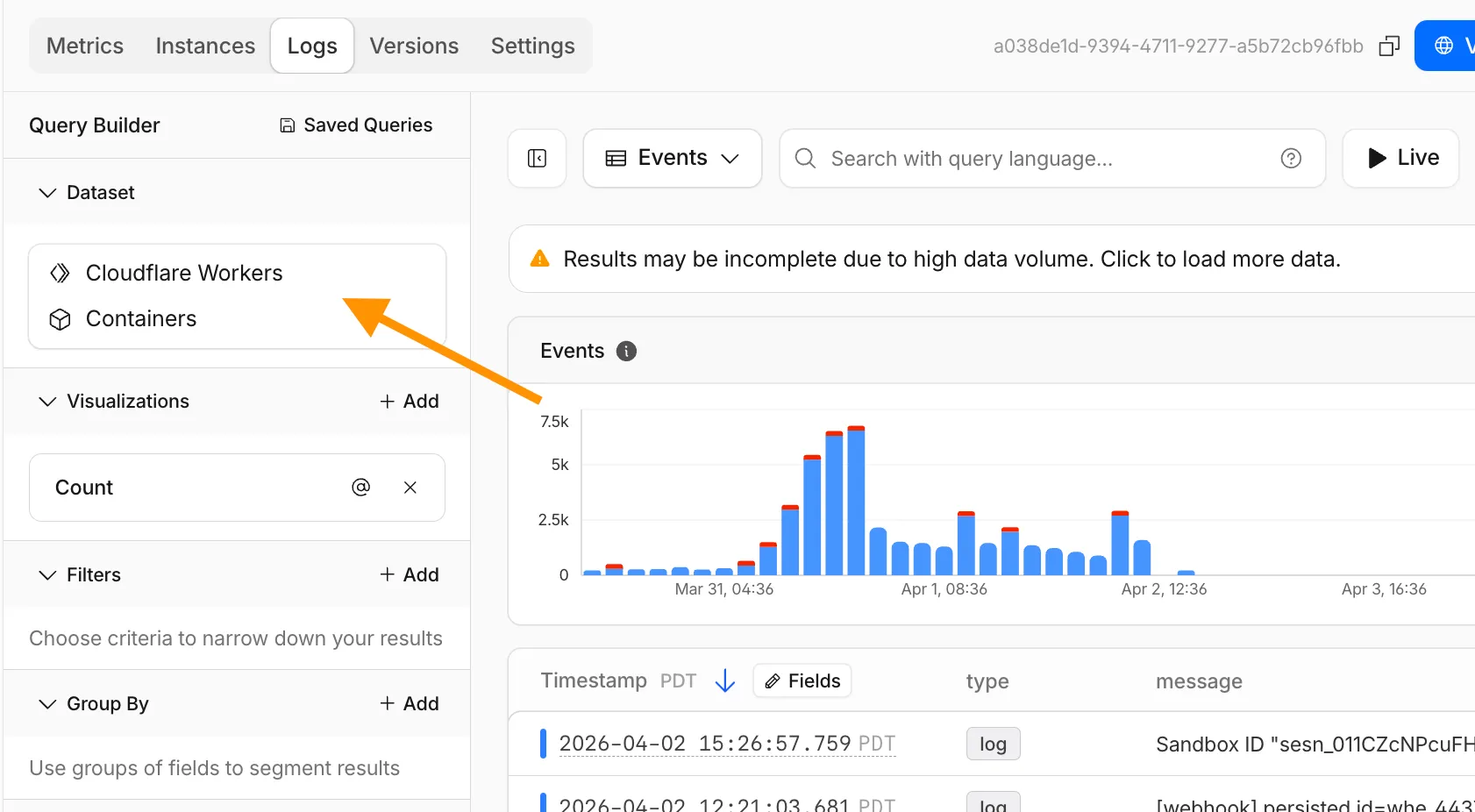
    The Container logs page now displays related Worker and Durable Object logs alongside container logs. This co-locates all relevant log events for a container application in one place, making it easier to trace requests and debug issues.

    Container logs page showing Worker and Durable Object logs alongside container logs

    You can filter to a single source when you need to isolate Container, Worker, or Durable Object output.

    For information on configuring container logging, refer to How do Container logs work?.

  • Containers – Container logs page now includes relevant Worker and Durable Object logs

    The Container logs page now displays related Worker and Durable Object logs alongside container logs. This co-locates all relevant log events for a container application in one place, making it easier to trace requests and debug issues.

    Container logs page showing Worker and Durable Object logs alongside container logs

    You can filter to a single source when you need to isolate Container, Worker, or Durable Object output.

    For information on configuring container logging, refer to How do Container logs work?.

  • Containers – Container logs page now includes relevant Worker and Durable Object logs

    The Container logs page now displays related Worker and Durable Object logs alongside container logs. This co-locates all relevant log events for a container application in one place, making it easier to trace requests and debug issues.

    Container logs page showing Worker and Durable Object logs alongside container logs

    You can filter to a single source when you need to isolate Container, Worker, or Durable Object output.

    For information on configuring container logging, refer to How do Container logs work?.

  • Cloudflare One, Gateway – Network session analytics dashboard

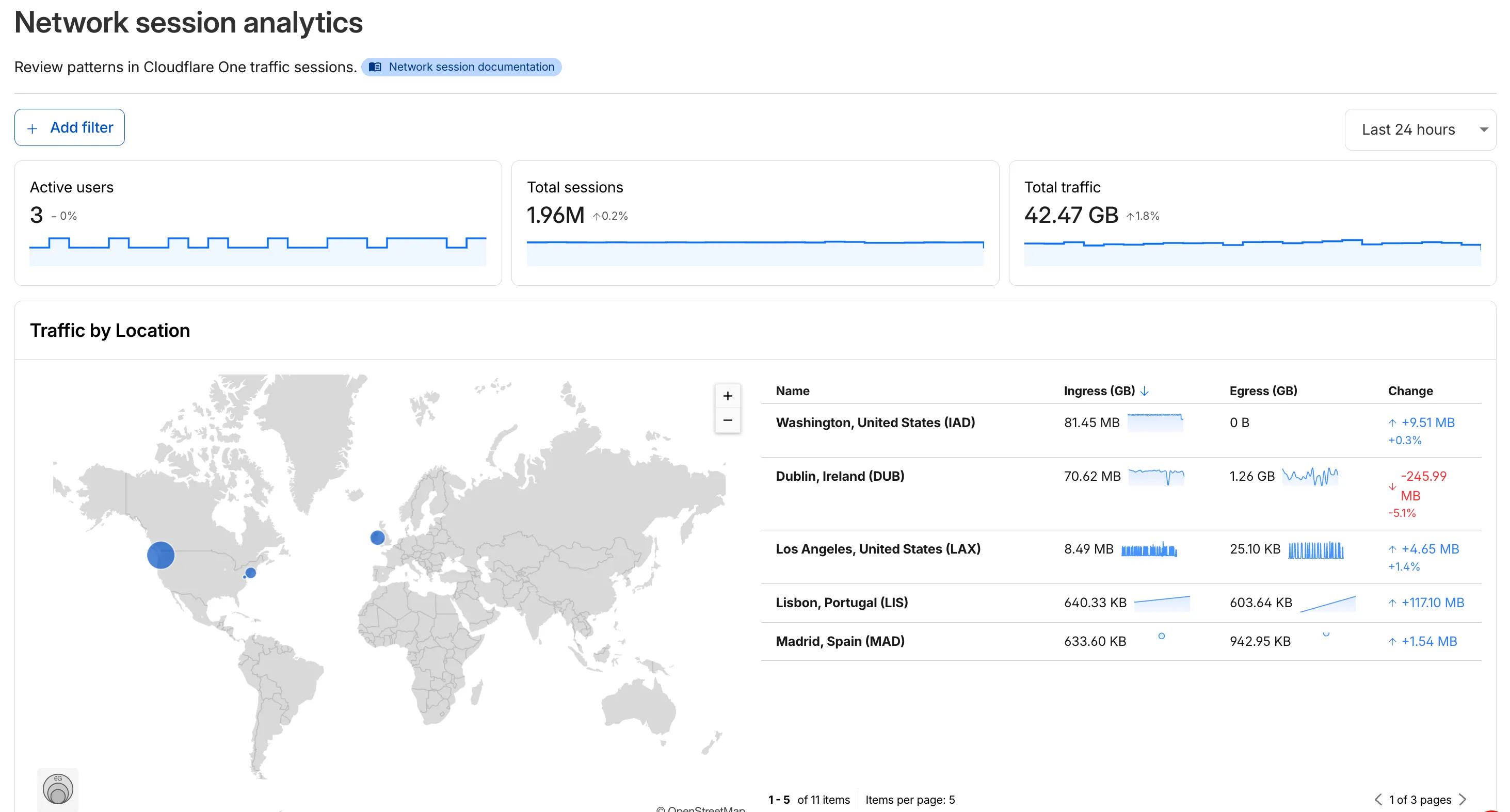
    The new Network session analytics dashboard is now available in Cloudflare One. This dashboard provides visibility into your network traffic patterns, helping you understand how traffic flows through your Cloudflare One infrastructure.

    Cloudflare One Network Session Analytics

    What you can do with Network session analytics

    • Analyze geographic distribution: View a world map showing where your network traffic originates, with a list of top locations by session count.
    • Monitor key metrics: Track session count, total bytes transferred, and unique users.
    • Identify connection issues: Analyze connection close reasons to troubleshoot network problems.
    • Review protocol usage: See which network protocols (TCP, UDP, ICMP) are most used.

    Dashboard features

    • Summary metrics: Session count, bytes total, and unique users
    • Traffic by location: World map visualization and location list with top traffic sources
    • Top protocols: Breakdown of TCP, UDP, ICMP, and ICMPv6 traffic
    • Connection close reasons: Insights into why sessions terminated (client closed, origin closed, timeouts, errors)

    How to access

    1. Log in to Cloudflare One.
    2. Go to Zero Trust > Insights > Dashboards.
    3. Select Network session analytics.

    For more information, refer to the Network session analytics documentation.